


What is X-raying and why use it
By X-raying LinkedIn you can search candidates without having to use LinkedIn paid search filters.
Many social media and professional platforms can be searched for candidates using a search string in Google. LinkedIn is no exception.
And there are many cases in which you can even find more search results using an X-ray search than with the premium account itself.
In this guide we’ll take you through the operators you can use to refine your Google search results of candidates.
Does LinkedIn X-ray still work?
Yes, and the reason is written into LinkedIn’s own robots.txt. That file ends with User-agent: * followed by Disallow: /, which tells every crawler on earth to stay out. Above it sits a named exception for Googlebot with a long list of blocked paths (/search*, /groups/, /feed/update/, /profile/ and dozens more) that pointedly does not include /in/. Public profiles are the one thing LinkedIn deliberately lets a search engine keep.
That asymmetry is the whole trick. Fetch a profile yourself with an ordinary browser agent and LinkedIn answers HTTP 999, its block code. The same file shuts out GPTBot, ClaudeBot, Google-Extended, Bytespider and Scrapy with a flat Disallow: /, so the AI search tools cannot read profiles either. Googlebot, Bingbot and a handful of other named engines are the exceptions, which is why X-ray survives while scraping does not: you are reading a library catalogue, not picking a lock.
Two things have changed since this guide first appeared, and both cost you results. First, site: is an estimate, not a list. Google’s own documentation says the operator “doesn’t necessarily return all the URLs that are indexed under the prefix specified” - Google Search Central. The result count at the top of the page is a guess, and the deeper you page the more Google collapses near-duplicates. Treat an X-ray as a sample of the market, never a census of it.
Second, in September 2025 Google removed the &num=100 parameter that returned 100 results on a single page. Impressions fell for 87.7% of sites in Search Console and 77.6% lost unique ranking terms once that bot traffic vanished - Search Engine Land. For sourcing it means one thing: you now page through X-ray results ten at a time. Reaching 200 candidates is 20 clicks of “Next”, and any extension or script that quietly relied on num=100 either broke or got ten times slower. The fix is not a workaround, it is a tighter search string.
How to X-ray LinkedIn
The most basic search string you can create to X-ray LinkedIn for candidates is:

By using the site: operator you only search for search results from the linkedin.com domain.
And with the /in addition you only get profiles as results instead of also getting results like articles and groups.
To make the search more targeted you can include a couple of things in your search like Boolean operators, title keywords and country codes.
With those additions to your syntax you can end up with a more targeted search string, like this one:
site:ca.linkedin.com/in intitle:engineer "front end" (angular OR typescript)

And search strings can get more complex, up to a hard limit. The standard Google search box caps you at 32 keywords, and past that Google simply ignores the rest without telling you much. The Google Programmable Search Engine (PSE) is the usual way around it, but be precise about what it actually buys you: the 32-word cap still applies to the PSE query box too. What PSE adds is a Synonyms setting that holds up to 500 terms, which you reference from one made-up keyword, so a single word in your query expands into a 500-item OR list - Boolean Strings. It is a configuration trick, not a bigger search box.
But to get to the search string that you need, it makes sense to break down the syntax in different parts first.
1. Adding Boolean operators to specify your search syntax
Google Boolean search strings for the recruiters use case are words you can use to connect your search words together to either narrow or broaden your search results.
The three basic Boolean operators are: AND, OR, and NOT (-).
For the people new to Boolean; it is important that you write these operators in capital letters, otherwise they won’t work.
AND: Tells the search engine to look for keyword X AND keyword Y. So if you’re looking for an engineer that has as well Angular as Node.js in their profiles, then you use the AND operator. Most search engines handle a space like AND, so you can choose to use a space between keywords instead of AND. Some examples:
site:nl.linkedin.com/in engineer JavaScript node.js
site:linkedin.com/in "sales executive" saas startup
OR: Tells the search engine to look for keyword X OR keyword Y. So if you’re looking for an engineer that has as either Angular or Node.js in their profiles, then you use the OR operator. By adding OR operators you usually broaden your search because you allow for more variations of keywords. Some examples:
site:nl.linkedin.com/in engineer (Angular OR node.js)
site:nl.linkedin.com/in (engineer OR developer OR programmer) Angular
NOT (-): Tells the search engine to exclude keywords, phrases or domains. In the case of Google the - is used in front of the keyword. If you’re looking for an engineer who is not focussed on managing a team but on coding you can exclude words like “Team lead” and “Manager” by including '-' in front of the keyword. Some examples:
site:nl.linkedin.com/in engineer (Angular OR node.js) -"Team lead"
site:linkedin.com/in "growth marketeer" -SEA -Advertisements
site:linkedin.com/in "saas sales" manager -intitle:"executive"
Boolean operators can be used in most search engines, including Google, Bing, Yandex but also platforms like LinkedIn and other social media platforms that support Boolean logic.
2. Add specific operators like intitle: to make your search more targeted
The intitle: operator lets you search in the current job title section of profiles.
You can use the intitle: operator to find job titles (like SaaS Sales Executive) but also for the companies the candidates work at (like Salesforce).
Here’s an example:
site:linkedin.com/in intitle:"Sales Executive" intitle:"Salesforce"

In this case you will get results of candidates that are currently a Sales Executive at Salesforce according to their job title.
One correction, and it is the thing most X-ray guides still get wrong: intitle: does not search a LinkedIn field at all. It searches the page’s HTML title tag, and LinkedIn builds that tag out of whatever the member gave it. Where somebody wrote a custom headline, the headline is what lands in the title (“Yana Vasylchenko - Talent Researcher | IT Recruiter Who Loves the Hunt | Boolean & Sourcing Focused | LinkedIn”). Where they did not, LinkedIn falls back to position and employer (“Jeff Coon - Owner / CEO - X-Ray Imaging Specialists, Inc | LinkedIn”). Some titles carry only a company (“Bobbi Remme - RadNet | LinkedIn”), and some carry a location as well. Run any X-ray and read the blue link text: you are looking straight at what intitle: matches against.
The practical consequence is that intitle: is a precision tool that silently drops people. intitle:"Sales Executive" misses every Salesforce AE who wrote “Helping SMBs scale revenue” as their headline, and there are a lot of them. Reach for intitle: when you have too many results and want the cleanest ones. Drop it back to a plain keyword when you need coverage, because a bare keyword matches the whole indexed page (headline, experience, skills, recommendations) instead of one line of it.
3. Search for specific countries or regions
There are basically two ways you can include countries and regions to your search string: use country codes or include the required area as a keyword.
Use country codes
LinkedIn uses country codes in the domain name to distinguish between different countries. Good news for you, because this allows you to include these codes in your search string and find candidates from only those countries.
The codes are the standard two-letter ISO country codes, with one that catches people out: the United Kingdom is uk.linkedin.com. The ones you will use most, all live as of July 2026, are nl (Netherlands), de (Germany), uk (United Kingdom), ie (Ireland), fr (France), es (Spain), it (Italy), be (Belgium), ch (Switzerland), at (Austria), se (Sweden), dk (Denmark), no (Norway), fi (Finland), pl (Poland), pt (Portugal), tr (Turkey), ca (Canada), mx (Mexico), br (Brazil), ar (Argentina), in (India), sg (Singapore), my (Malaysia), ph (Philippines), au (Australia), nz (New Zealand) and za (South Africa).
There is no us. equivalent: us.linkedin.com just redirects to the main site, so American profiles sit on plain www.linkedin.com/in, and so does anyone else whose profile Google happened to index on the main domain first. A country-code X-ray therefore narrows hard and quietly loses people, exactly the way intitle: does. Use it when a country is a strict requirement, and fall back to plain site:linkedin.com/in plus a city keyword when you need volume.
Add the country code that you need to your search string.
For Canada the search string looks like this: site:ca.linkedin.com/in

Now you only get to see LinkedIn profiles from Canada in your Google search results.
Include an area as a keyword
You can include defined area names to your search.
LinkedIn has its own naming convention for countries, cities and regions.
You have to take into account that in some cases a country, city or region has (a lot) of different ways of spelling or naming (for example Germany/Deutschland or Cologne/Köln).
It is good practice to include synonyms in your keywords if you know them.
The keywords will not be targeted to the location field in LinkedIn so it will also find results when the country, city or region names are mentioned anywhere in other fields like descriptions.
For Cologne the search string can look like this:
site:de.linkedin.com/in (Koln OR Cologne)

Combined X-ray examples to search LinkedIn
site:nl.linkedin.com/in intitle:developer iOS Android (Flutter OR React) Amsterdam
site:linkedin.com/in intitle:"growth marketeer" data (experiment OR iteration OR testing OR tooling)
What X-ray gives you, and what it does not
An X-ray returns a list of public profile URLs. That is the entire output. There is no database, no export button, no message button, and nothing in those ten blue links tells you how to reach the person. This is where most X-ray workflows quietly die: you write a beautiful 40-line Boolean string, find twelve genuinely good engineers, and then have no way to contact any of them without buying the LinkedIn seat you were trying to avoid.
You have three honest options. A connection request with a note is free but slow, capped by LinkedIn’s weekly invitation limit, and a request is not a conversation. Buying LinkedIn Recruiter defeats the point of the exercise. The third, and the one that actually pairs with X-ray, is to resolve the profile you found into a work email and send a normal email. Google already handed you the name, the title and the employer, which is exactly what a contact-data tool needs to find the rest.
Two tools do that job well enough to recommend, and they split on price. Apollo.io is the one to start with, purely because it has a real free tier: you can run an X-ray, look up a shortlist and send the emails without ever entering a card. Lusha is the paid alternative at $49.90 per user per month and tends to do better on direct-dial phone numbers, which matters if you work a market that answers the phone but not email. Both are B2B databases built for salespeople rather than recruiters, so both are strongest on office workers at trackable companies and weakest on everybody else. Verify a sample before you trust either one at scale, and expect a bounce rate rather than perfection.
Apollo.io
X-ray hands you a profile URL and nothing else, so the missing half of this workflow is an email address. Apollo.io is the cheapest honest way to close that gap: paste in the name and company you just pulled out of a Google result, or run its Chrome extension on the profile, and it returns a verified work email. The free plan needs no card, but read the units carefully, because Apollo runs more than one kind of credit and they get quoted interchangeably. The general credit pool on the free plan is 900 credits per seat per year, released monthly, and exports are separately throttled to roughly 10 export credits a month, which is what actually caps how much you can pull out in bulk. Email credits are a different budget again, nominally unlimited under the fair use policy but capped in practice at 10,000 emails a month on a verified corporate domain and only 100 a month if you signed up with a Gmail address. The step up is $49 per seat per month billed annually ($65 if you pay month to month) for 30,000 credits a year. The honest caveat: Apollo is a B2B sales database first, so coverage is strong on people with a corporate email at a company it already tracks, and noticeably thinner on freelancers, contractors, agency staff and under-indexed markets. Spot-check ten people off your real shortlist before you trust it with a whole search.
When to X-ray, and when not to
X-ray is unbeatable at one job: cheaply proving a talent pool exists and pulling the obvious names out of it without paying anyone a cent. If you need to know whether there are Kubernetes engineers with Grafana experience in Toronto before you commit budget to a role, thirty seconds in Google answers it. It is also the only route into LinkedIn’s public data that the crawler policy leaves open, since anything that is not a named search engine is blocked at robots.txt.
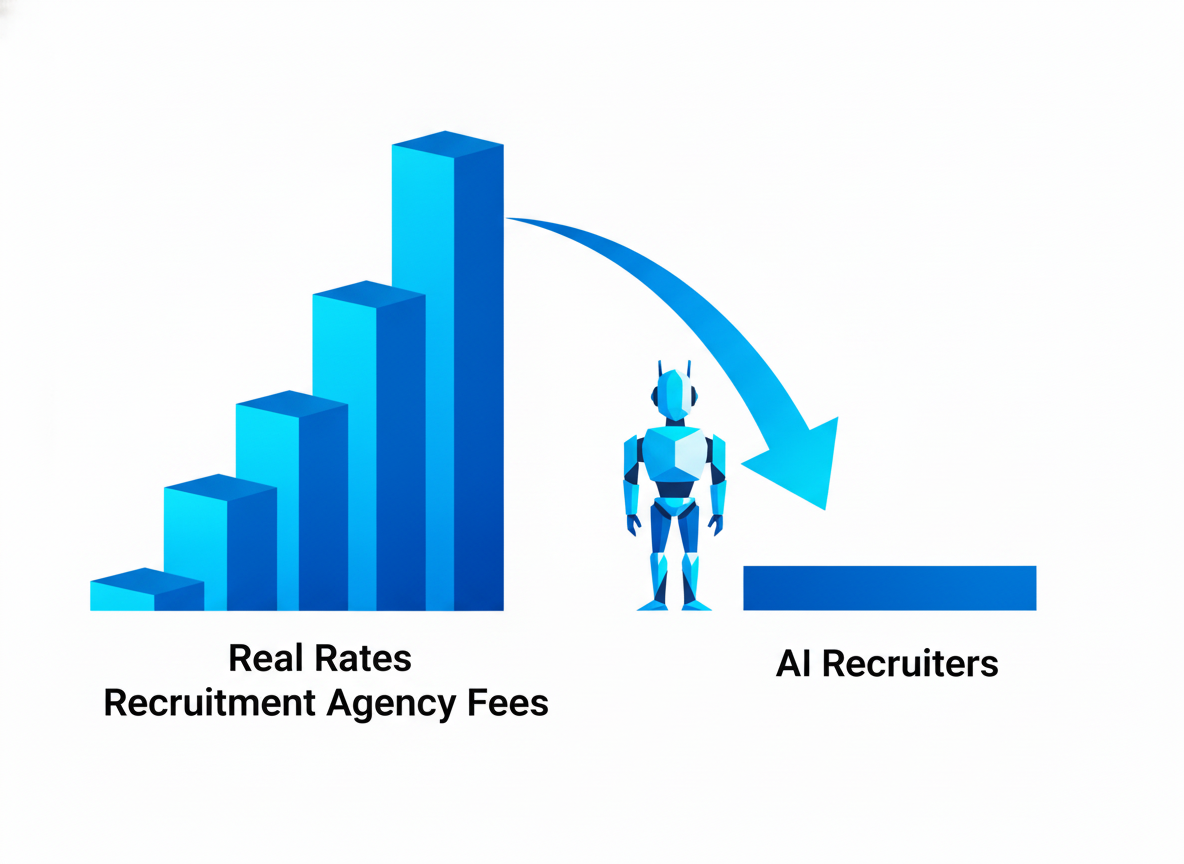
It is bad at three things, and it is worth saying so plainly. It cannot see what LinkedIn does not publish to Googlebot, so private and logged-in-only fields are invisible. Its index is stale, because Google recrawls a profile on its own schedule and the “current” title you matched on may be months old. And it does not scale: since num=100 went away, volume costs you clicks, and the 32-word cap limits how clever one string can get. Once a search is worth running weekly rather than once, a real sourcing tool (LinkedIn Recruiter at the expensive end, an AI recruiter like HeroHunt.ai at the other) does the paging for you. Until then, X-ray plus a contact-data tool costs close to nothing and gets you further than most people expect.
HeroHunt.ai
Worth being clear about why those three limits are structural: none of them are properties of your Boolean string, they are properties of Google’s index, so no amount of operator tuning touches them. HeroHunt.ai is the AI recruiter built for the search you would otherwise run by hand: it searches across a billion public profiles, screens each one with a language model against your actual requirements instead of a keyword match, and drafts the outreach, so the paging and the shortlisting stop being your clicks. The honest caveat: it is a paid product, and for a one-off “does this talent pool even exist in Toronto” check, thirty seconds of free Google X-ray is still the right tool. It earns its place when a search is worth running every week, and you should still read the model's reasoning on the first batch before you trust the shortlist.