
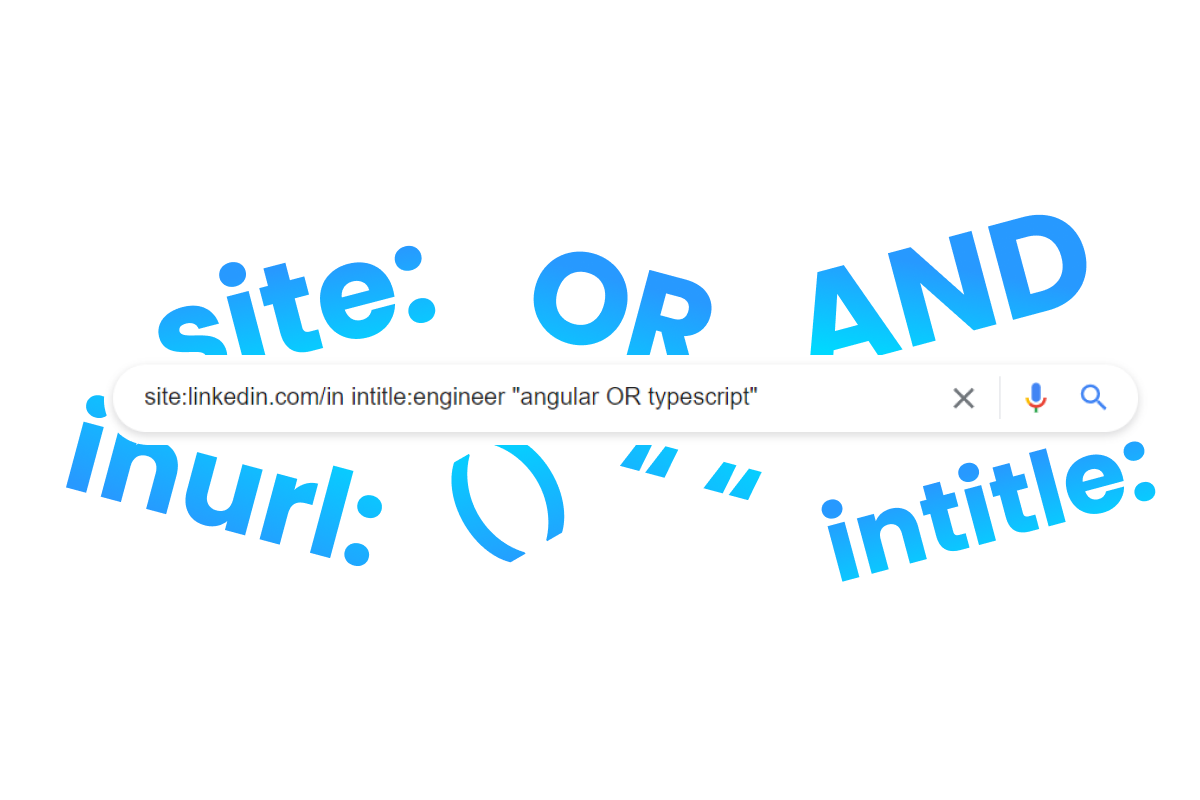



X-raying is using a generic search engine, like Google, to search profiles from other platforms, like LinkedIn.
The power of an X-ray search is that you can turn a regular search engine like Google into your personal source of candidates.
An x-ray search is not only applicable to finding LinkedIn profiles, but also any other database with candidates.
It doesn't have to be difficult.
An example of a very simple X-ray search for LinkedIn is this search string in Google:
If you click on this search string, you’ll see the results for yourself.
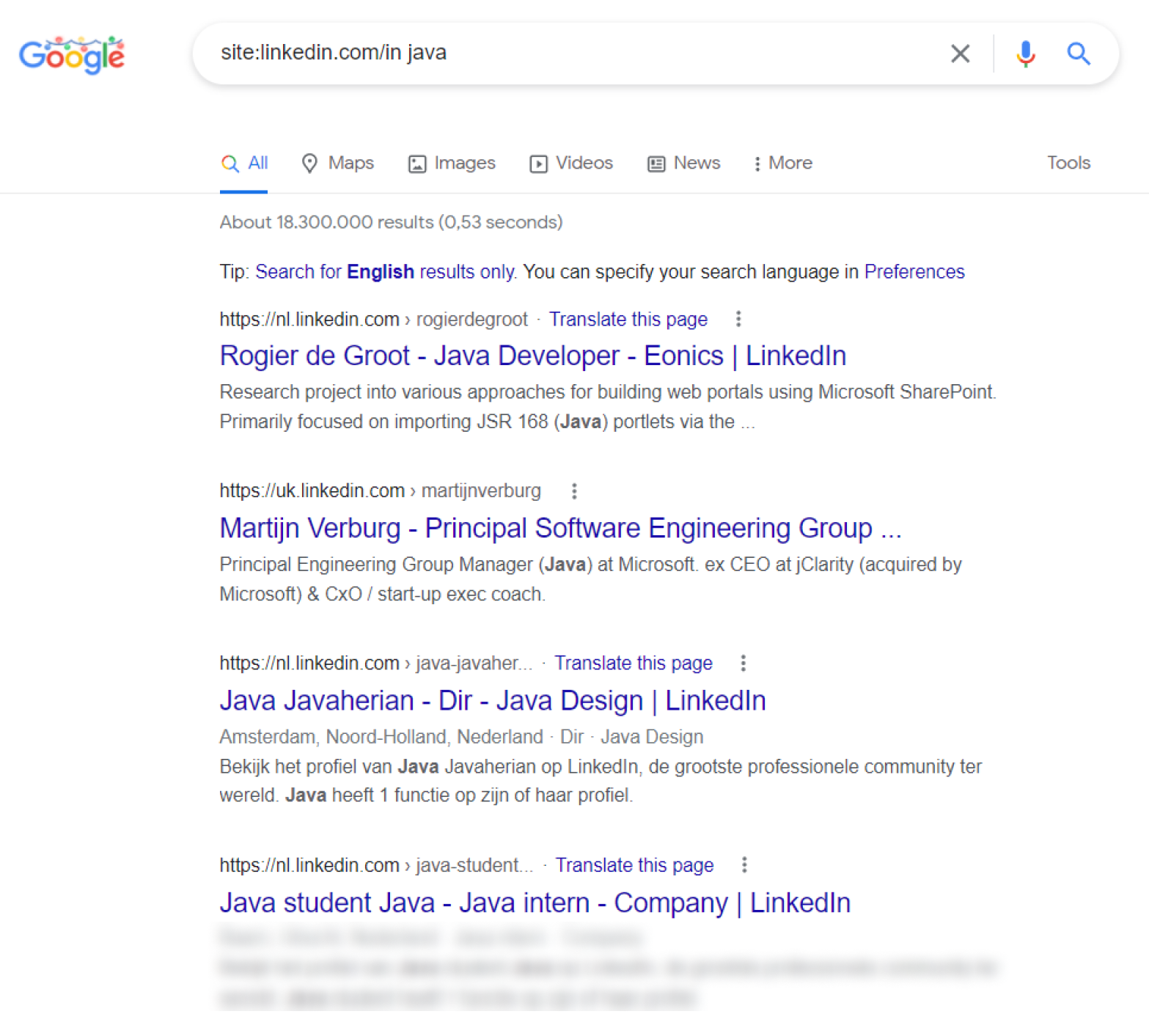
This x-ray search works, but unless you are planning on screening 18.300.000 search results, you might want to make a search that provides more targeted results.
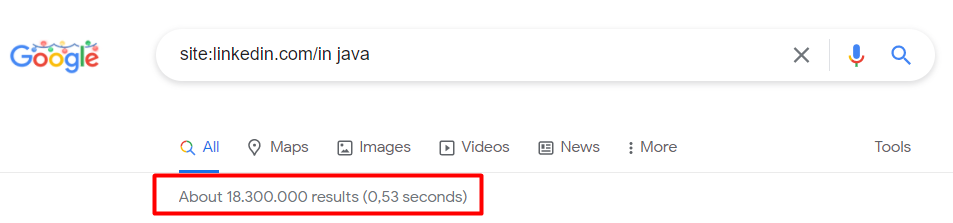
With this search string you’re searching the public version of every LinkedIn profile Google has indexed for the word ‘Java’.
That distinction matters far more today than it did when this guide was first written, so let’s be upfront about it. A public profile is not the profile you see when you are logged in. LinkedIn’s own help centre is blunt about this: “Your public profile is a simplified version of your LinkedIn profile. Not all sections of your profile can be displayed publicly” - LinkedIn Help. Members can toggle sections off individually, and several are restricted by default, so the skills list, the full role history and the About text you would happily Boolean against inside LinkedIn are often simply not there for Google to index.
The honest consequence: X-ray is no longer a drop-in replacement for LinkedIn Recruiter, and any guide that still claims it is has not checked recently. What X-ray is still genuinely excellent at is three things: finding people on platforms that do publish rich profiles (GitHub, Stack Overflow, Kaggle, personal sites and company team pages), building candidate lists when you have zero sourcing budget, and reaching corners of the web that no seat licence or ATS covers. This guide is written around that reality rather than against it.
You probably have more specific requirements than ‘does something with Java’, so in this guide we will show you how to build a search string that takes into account individual keywords, combinations of keywords, where keywords should be found and how to make your search more targeted with advanced operators.
We will give you examples of x-ray searches for different platforms.
We will also show you some tools that help you build search strings automatically.
This complete guide on X-raying will let you walk away with:
- Understanding how search engines work, and what they can no longer see
- Understanding the basics of search operators: Boolean and advanced operators
- List with examples of search strings, per platform
- Search engines designed for finding talent
- Turning an X-ray hit into an actual conversation
1. Understanding how search engines work
Web search engines provide us access to almost all content on the internet. The most well known and widely used search engine is Google, at roughly 90% global market share, down from around 92% a couple of years ago.
Bing, Yahoo, Yandex, Baidu and alternative search engines make up the rest of the search engine market. That slow decline is worth a moment of your attention as a sourcer: Bing and Yandex index the web differently, which means they surface different profiles. When a string goes cold on Google, running the identical string on Bing is the cheapest second opinion in sourcing. Both support the same core operators.
These search engines follow a process that is called ‘indexing’, which basically means that they keep track of what content is stored on the internet, where it’s stored and when it’s updated.
That indexed content includes almost anything available on the web, and that includes profiles (like LinkedIn profiles).
Therefore we can find those profiles in a search engine like Google.
The mentioned search engines work very similar to each other (except for some minor differences).
Now we know this, we just need to know how to search Google for profiles.
Search engines don’t have search filters that are made for finding people.
That's why we have to work with something called ‘search operators’.
And that’s what the next part is all about.
2. Understanding the basics of search operators: Boolean and advanced operators
Search operators are used before or between words to target a search.
Targeting a search means that you can indicate to the search engine (let’s assume Google) what the priority of keywords is and where those keywords have to appear on a profile.
For example, take this search string:

site:linkedin.com/in intitle:engineer "front end" (angular OR typescript)
This string finds people on LinkedIn (profiles only) who have ‘engineer’ in their job title, ‘front end’ somewhere in their profile and Angular or Typescript (or both) on their profile.
To understand how this search string is built up, let’s go through the basics.
The quick wins (basic search operators)
Now we know what the function is of search operators, we can start using them in our searches. We start with the most simple but powerful operators.
The first quick win: the site: operator
By starting your search with site: you tell Google to look only for results from a particular website.
By including site:linkedin.com you will only get search results that are coming from LinkedIn.
This works for the main domain (linkedin.com) but it also works for any subfolders, for example when you add /in, you will only find LinkedIn profiles because every profile on LinkedIn starts with this linkedin.com/in.
Try it for yourself: site:linkedin.com/in
This also works with Stack Overflow for example (a platform for developers), where you can find developer profiles by starting your search with this site:stackoverflow.com/users.
The second quick win: Boolean operators
The Boolean operators are AND, OR and NOT.
AND tells the search engine to look for keyword X AND keyword Y. So if you’re looking for an engineer that has as well Angular as Node.js in their profiles, then you use the AND operator. Most search engines handle a space like AND, so you can choose to use a space between keywords instead of AND.
Some examples:
site:nl.linkedin.com/in engineer JavaScript node.js
site:linkedin.com/in "sales executive" saas startup
OR tells the search engine to look for keyword X OR keyword Y. So if you’re looking for an engineer that has either Angular or Node.js in their profiles, then you use the OR operator. By adding OR operators you usually broaden your search because you allow for more variations of keywords.
Some examples:
site:stackoverflow.com/users engineer (Angular OR node.js)
site:nl.linkedin.com/in (engineer OR developer OR programmer) Angular
NOT (-) tells the search engine to exclude keywords, phrases or domains. In the case of Google the - is used in front of the keyword. If you’re looking for an engineer who is not focussed on managing a team but on coding you can exclude words like “Team lead”, “Manager” or "Intern" by including '-' in front of the keyword.
Some examples:
site:stackoverflow.com/users engineer (Angular OR node.js) -"Team lead"
site:linkedin.com/in "growth marketeer" -SEA -Advertisements
site:linkedin.com/in "saas sales" manager -intitle:"executive"
For the people new to Boolean; it is important that you write these operators in capital letters, otherwise they won’t work.
Boolean operators can be used in most search engines, including Google, Bing, Yandex but also platforms like LinkedIn and other social media platforms that support Boolean logic.
The third quick win: organize your x-ray
Because you probably want to use several keywords and combinations of keywords, you want to organize your search.
This search:
site:linkedin.com/in sales executive saas enterprise software salesforce atlassian
Will give you LinkedIn profiles of people who simply have all the listed keywords somewhere in their profile.
But who you want to find are sales executives, in the SaaS or Enterprise Software industry, who have worked at either Salesforce or Atlassian.
That’s why you have to organize your search with brackets () and quotations “ “, resulting in way more targeted results.
site:linkedin.com/in "sales executive" (saas OR “enterprise software”) (Salesforce OR Atlassian)
Brackets ( )
Tells the search engine to group certain keywords so you can combine them and separate others. You can use the brackets ( ) to organize your search string with separate combinations of keywords.
Example 1
You have three optional skills that you are looking for, you want to find the candidates who have either one of those. You include the optional skills as keywords between brackets separated by OR statements: (Keyword1 OR Keyword2 OR keyword3).
site:linkedin.com/in sales (saas OR fintech OR finance)
Example 2
You want to look for candidates from specific companies and separate those company keywords from other keywords that you’re using in the search string. So you include the company names as keywords between brackets separated by OR statements: (Company1 OR Company2 OR Company3).
site:linkedin.com/in sales ("open to work" OR "looking for opportunities") (microsoft OR google)
Quotations “ ”
Tells the search engine to search for an exact phrase. Keywords within the quotation marks should be occurring exactly as they are spelled and in the same order.
Example 1
You are looking for a growth marketer. You want to search for the words growth and marketeer in the same phrase.
site:linkedin.com/in "growth marketeer"
Example 2
You are looking for people who indicate that they are open for work. You include the phrases “open to work” and “open for opportunities” to your string.
site:linkedin.com/in "growth marketer" "open for opportunities"
Make your x-ray more targeted
You can add operators which make your search more targeted by telling the search engine where to look for the keywords.
For example, starting with intitle: before a keyword tells the search engine to look for the keyword in the title section.
This way you can search for people who have certain job titles.
Intitle:
Tells the search engine to look for the keyword in the title section. What is seen as the title depends on the format of the website that returns the results. This can be for example the job title in a LinkedIn profile but the title can also be the title of a blog on a website.
Example 1
You are looking for a candidate who is currently a sales executive in a company. You include the intitle: operator followed by “sales executive”.
site:linkedin.com/in intitle:"sales executive"
Example 2
You want to find team members that are presented on company websites. You use the intitle: operator to look for “our team” since that indicates a description of a page on a website that presents the company’s team.
Inurl:
Works very similar to the Intitle: operator, but it searches for keywords in the url.
Example 1
You want to find resumes only. You use the inurl: operator to look for urls that have ‘resume’ or ‘CV’ in the url.
inurl:(resume OR cv) python r snowflake
Example 2
You're getting some results in your search that you don't want. They are related to blogs webpages so you decide to exclude the results coming from those pages.
intitle:"sales executive" "open for work" -inurl:blog
Filetype:
Tells the search engine to look for particular file types only. With the filetype: operator you can search for document files (like pdf and doc), data files (like csv and xml) and more. Here’s an overview of file types. Some file types work, others don't, which leaves some room for experimentation.
Example 1
You want to look for CV’s. Resumes are usually saved as pdf files. You include the filetype: operator followed by the file type extension, in this case pdf.
filetype:pdf intitle:(cv OR curriculum vitae OR resume) "sales executive"
Example 2
You want to find lists of attendees of an event that is related to your related domain. Lists are usually presented in excel formats so you include the xlsx as a file type in your search.
filetype:xlsx attendees sales conference
Asterisk *
Tells the search engine to treat the asterisk as a placeholder for one or more whole words inside a quoted phrase.
This is the operator most often taught wrongly, including in earlier versions of this guide, so it is worth correcting properly. The asterisk is not a stemmer and it does not match part of a word. Google ignores an asterisk that is not surrounded by spaces, which means a search for manag* does not return manager, managed, managing and management: Google just reads it as ‘manag’ and applies its own automatic stemming instead - Google Guide. Notably, Google’s own operator documentation does not list the wildcard at all, alongside intitle: and inurl: - Google Search Help. Those two still work, but undocumented operators are supported at Google’s pleasure, not by promise.
Example 1
You want manager profiles and there are several variations of the title. Do not reach for a wildcard here. Spell the variants out with OR, which is both accurate and gives you control over what you actually pull in:
site:linkedin.com/in intitle:(manager OR management OR lead) engineering
Example 2
You want to search for profiles within a niche platform, in this case Kaggle, and you see that on every profile page there is something like “joined 4 months ago”. The number and months/years can obviously differ in every individual case so you can’t search for “joined 4 months ago”. You include the asterisk to search for all the variations “joined * ago”.
site:kaggle.com “joined * ago” amsterdam python
This second example is the correct use, and the contrast with Example 1 is the whole lesson. In “joined * ago” the asterisk sits inside quotes with a space on either side, so it stands in for a whole missing word (‘4 months’, ‘2 years’). That is what the wildcard is actually for: a phrase you know, with one variable word in the middle. Reach for it when you are matching boilerplate text that platforms print on every profile, not when you are trying to catch variations of a job title.
Before: and after:
Tells the search engine to only return documents it associates with a given date range. Unlike the wildcard, these two are officially documented by Google, and they are the most underused operators in sourcing.
Their value is freshness. An indexed page is not a current page, and X-ray results skew old: you are searching Google’s copy of a profile, which may have been crawled a long time ago. Constraining by date is a crude but effective way to bias toward profiles that have been touched recently, which correlates with people who are actually active.
Example
You want engineers whose public GitHub presence shows recent activity rather than a page last touched in 2019.
site:github.com "machine learning" amsterdam after:2025-01-01
The caveat, and it is a real one: Google filters on the date it associates with the document, which is inferred and frequently wrong for profile pages. Treat these operators as a noise reducer, not as a reliable ‘last active’ filter. If a string returns almost nothing once you add a date, the date is probably the problem, not the talent pool.
3. Examples of search strings, per platform
The single highest-leverage decision in X-ray is not the operator you use. It is which site you point it at. Since LinkedIn stripped back what its public profiles expose, the strings that reward you most are the ones aimed at platforms that still publish rich, structured, public profiles. Developers, data scientists and designers document themselves in public. Sales and finance professionals largely do not, which is why X-ray has always worked better for technical roles and why it works even more lopsidedly that way now.
The pattern below is the same every time: pin the site with site:, pin the profile path with a subfolder or inurl:, then layer keywords and a location. Copy these, swap the keywords, and you have a working sourcing string. Each one is a starting point to be tightened, not a finished search.
Still worth searching, with lowered expectations. Restrict to the /in profile path, and use a country subdomain to cut the pool down geographically. Country subdomains are one of the few LinkedIn X-ray tricks that got more useful as the profile body got thinner, because the URL is metadata that LinkedIn cannot hide from Google. We keep a full list of LinkedIn country codes if you need one beyond the obvious.
site:nl.linkedin.com/in intitle:("data engineer" OR "data scientist") (python OR spark)
Because the headline is one of the few things reliably left on a public profile, intitle: now does most of the work on LinkedIn strings. Keyword matching against skills or past roles is far less dependable than it used to be, so if a LinkedIn X-ray returns thin results, that is expected behaviour rather than a broken string.
GitHub
GitHub is the best X-ray target on the open web for engineers, because profiles are public by default and carry a location field. The complication is that GitHub user profiles sit at the root path (github.com/username), so a naive site: search buries you in repositories, issues and commits. Exclude those paths explicitly.
Stack Overflow
Stack Overflow profiles live under a clean /users path, which makes it the tidiest X-ray on this list. The trade-off is that the platform’s own activity has declined sharply in the AI era, so treat a Stack Overflow profile as evidence of skill, not evidence that someone is currently reachable or active there.
site:stackoverflow.com/users amsterdam (react OR typescript)
Company team pages
This is the string most recruiters never try, and it is the one that finds people who are invisible everywhere else. Small and mid-sized companies publish their whole team on one page, with names, titles and often emails. You are not searching a profile platform here, you are searching the open web for a page format.
intitle:("our team" OR "meet the team") "machine learning" amsterdam -inurl:blog
Resumes and CVs
The classic X-ray, and still productive, though you should know what you are getting. People who publish a CV as a PDF on the open web skew toward the actively job-seeking and toward academia. That is a feature when you want responsive candidates and a bug when you want genuinely passive talent. The -inurl:job exclusions matter here: without them, job boards drown the results.
One practical note before you start pasting these. Between 8 and 10 September 2025, Google quietly stopped supporting the &num=100 URL parameter, which used to force 100 results onto a single page - Search Engine Land. You will still see it in older sourcing tutorials, and in a few of the example links further up this page, where it is now simply ignored. The practical effect for sourcers is that reviewing a broad string got roughly ten times more tedious, which shifts the economics decisively toward tightening the string rather than skimming a huge result set.
4. Search engines designed for finding talent
Everything above is manual, and manual is fine for one role. It stops being fine at five. The tooling layer exists to remove the string-writing and the paging, and it splits into three tiers that are worth understanding separately, because they solve genuinely different problems and the marketing around them tends to blur the distinction.
The first tier is string generators, which just write the Boolean for you. The second is custom search engines, which pre-scope Google to a set of sites so you stop typing site: at all. The third is AI sourcing platforms, which drop the search-engine model entirely and query a maintained profile database instead. Only the third tier actually escapes the LinkedIn indexing problem this guide opened with, because it is not dependent on what Google was allowed to crawl.
RecruitEm
RecruitEm is the best known X-ray string generator: you fill in fields for site, location, job title and keywords, and it hands you a Google string. It is free, it is fast, and it is a genuinely good way to learn Boolean by seeing what it produces. It does not find anything you could not find yourself with this guide, and it inherits every limitation of the underlying Google index. We have a full walkthrough of RecruitEm if you want the detail.
Google Programmable Search Engine
The Programmable Search Engine (formerly Custom Search Engine) is Google’s own free tool for building a search engine scoped to a fixed list of sites. For a sourcer, this is the most underrated item on the page: if you repeatedly search the same five platforms for the same kind of person, a PSE removes the site: boilerplate permanently and lets you add refinements and default keywords. It takes an afternoon to set up and pays back for years. We wrote a complete guide to recruiting with the PSE separately, because it deserves more room than this section gives it.
AI sourcing platforms
The newer category skips the search engine. Rather than asking Google what it happened to index, tools like HeroHunt.ai query a maintained candidate database directly and let you describe the person in plain language instead of in operators. That sidesteps the public-profile problem entirely, and it is honest to say that this is also where our own bias lies, since we build one. The trade-off is the usual one: X-ray is free and infinitely flexible but capped by what Google can see, while a database is paid and opinionated but complete. Most working sourcers end up using both, and if you want the middle path, we cover using AI to write and refine X-ray strings in a dedicated guide.
HeroHunt.ai
If you landed on this guide because your LinkedIn X-ray strings stopped returning what they used to, that gap is the reason this third tier exists. HeroHunt.ai searches a maintained profile database from a plain-language description rather than a Boolean string, so it is not limited to the stripped-back public profiles LinkedIn allows Google to index, and it is unaffected by Google dropping the num=100 parameter in September 2025 that made reviewing a broad string roughly ten times more tedious. We build it, so read this as the biased recommendation it is, and here is the honest limit: a database only knows the people who are in it. The 12-person company team page and the niche platform profiles from section 3 are precisely the corners no database has indexed, and for those a free search string will still beat any tool, ours included.
5. Turning an X-ray hit into an actual conversation
Here is the step that guides like this one usually skip, and it is the one where free sourcing quietly dies. An X-ray returns a profile URL. It does not return a way to contact the person. You can build a beautiful string, pull forty perfect GitHub profiles, and be no closer to a hire than when you started, because a GitHub username is not an email address and a LinkedIn profile you found on Google is a profile you still cannot message without a paid InMail.
You have three realistic options. You can look for the contact detail in the open, which works more often than people expect: GitHub users frequently publish an email in their commit history or profile, Stack Overflow users often link a personal site, and team pages usually print the address outright. You can guess and verify the corporate pattern (firstname.lastname@company.com) with a free verifier: a free email format finder that lists a person’s likely work addresses, ranked by how common each pattern is (on PeopleSearch.im, a people-search site from HeroHunt’s founder), gives you the guesses to test. Or you can use a contact database such as Apollo or Lusha to resolve a name plus a company into a verified work email, which is what most people do once volume gets real. Between those two, Apollo is the one we would point an X-ray user at first, for a reason specific to how you got here.
Apollo.io
For the third option, Apollo is the pragmatic default for this specific workflow, because its database is indexed by company and job title, which is exactly the pair of facts an X-ray hit hands you. One number is worth knowing before you sign up, and it pays to be precise about which credit it is: Apollo’s fair use policy caps free-plan email credits at 10,000 per month on a verified corporate domain, and at only 100 per month if you sign up with a personal address like Gmail. Export credits are a separate and far smaller pool. That is enough to test this workflow on a handful of real roles, not to run high-volume sourcing on, so spend those credits deliberately. Paid plans start at $49 per user per month. The honest caveat: Apollo is built for B2B sales, not recruiting. It is strong on work emails at companies with a web presence and weak on freelancers, students and anyone whose employer is not a plausible sales target, which unfortunately describes a good share of the people you just found on GitHub and Kaggle.
Whichever route you take, the sequencing matters: find with X-ray, verify the person is a genuine fit by actually reading the profile, and only then spend a credit or a guess on contact details. Reversing that order is how sourcers burn a month of free tier in an afternoon. Our guide to finding candidate email addresses goes deeper on the verification step and on the tools that compete with Apollo here.
Wrapping up: when to X-ray, and when not to
X-ray search is a skill worth two hours of your life, and this guide has given you the whole thing: how the index works, the operators that matter, real strings per platform, the tools that automate the boring parts, and the contact step nobody mentions. The operators are not the hard part. Knowing where to point them is.
Use X-ray when you are hiring technical people who document themselves in public, when you have no sourcing budget, when you need to reach a niche platform no vendor has indexed, or when you want to find the people hiding on a 12-person company’s team page. Do not use X-ray when you need coverage and volume in a hurry, when you are hiring for roles whose people leave no public trace, or when you are relying on it to replicate what LinkedIn shows a logged-in user. It will not, and the gap is wider every year.
The most useful mental model: X-ray is a scalpel, not a net. Treat it as one of several sourcing channels, expect to combine it with a database once you are past a handful of roles, and accept that a free string will always be capped by what Google was allowed to crawl.
X-ray finds the people Google was allowed to index. HeroHunt.ai searches the profiles it never got to see.
Written by Yuma Heymans (@yumahey), who built HeroHunt.ai, the world’s first AI Recruiter. He has been writing Boolean strings since long before it was possible to make an AI write them for you.